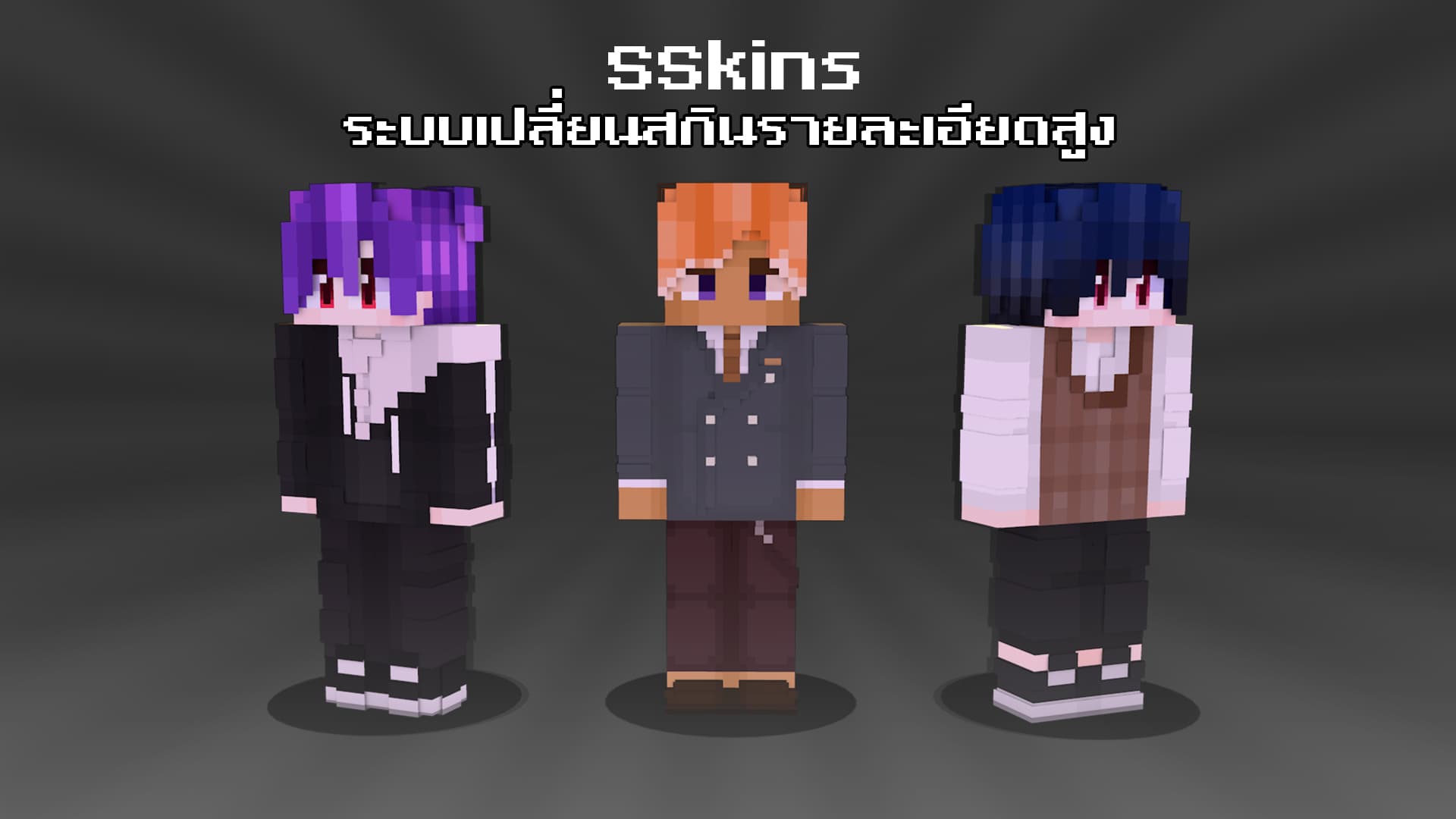
See the system in action
Every workflow is built around simplicity. Upload, configure, and manage everything directly from the web interface.
Features
Everything you need to create immersive roleplay experiences.
Designed around real server workflows, ensuring high performance, ease of use, and compatibility.
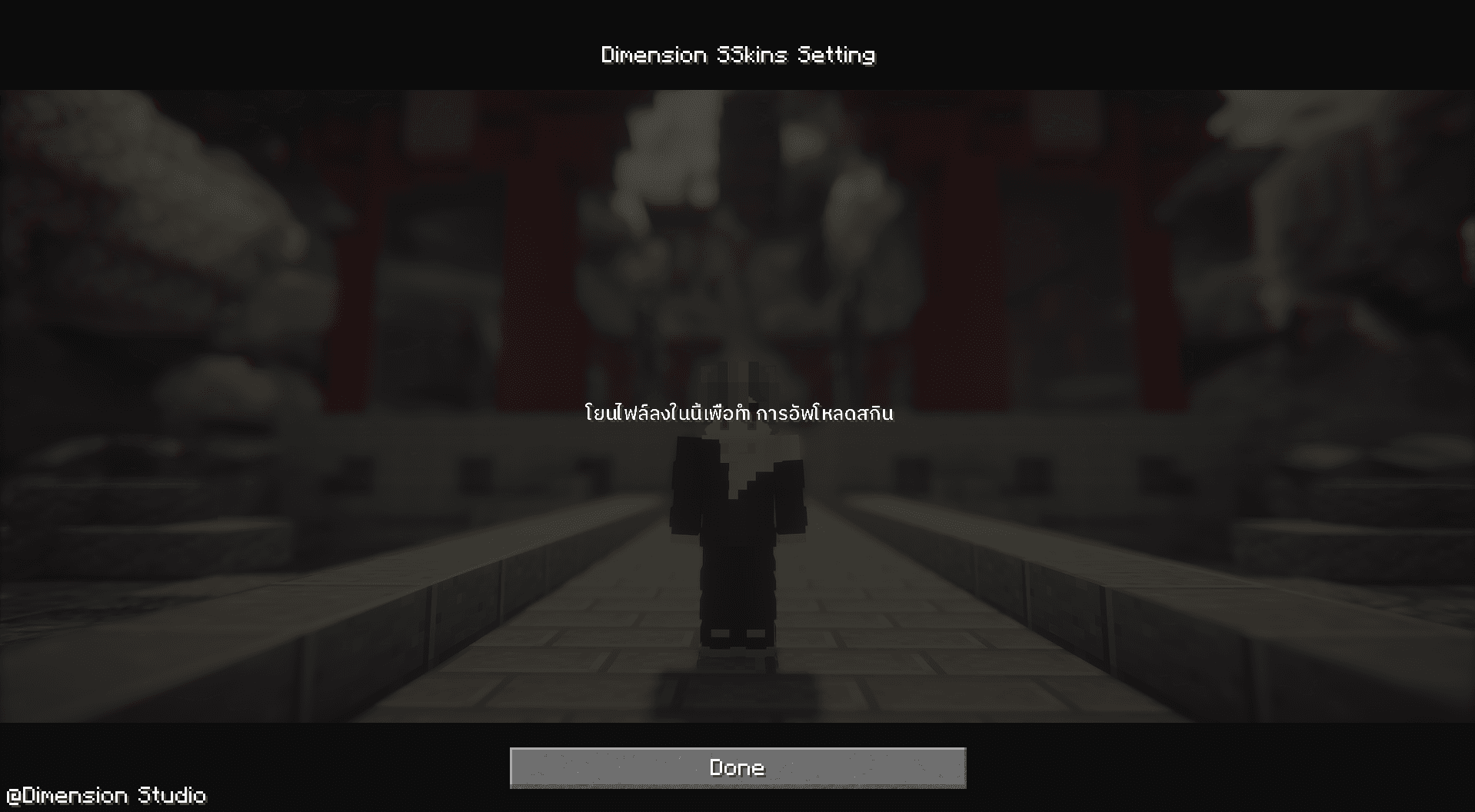
Upload skins directly in-game
Drag and drop custom skins without leaving Minecraft.
Voice synchronized mouth animation
Character mouth movement reacts in real time to voice chat.
Built for communities
Manage hundreds of players with centralized configuration.
Simple configuration
Control permissions, animation settings and skin options from one place.
Trusted By
Powering top-tier communities.
Join the growing list of professional teams and studios using SSkins to enhance their players' experience.
APLACE Studio

FriendsCraft Team

RESETO Project

LenlorCraft Team

Prisma Studio

Dimension Studio
Tutorial
Learn the complete workflow in a few minutes.
Follow these direct steps used by thousands of players and teams to configure their mouth animations.
Tutorial Videos
Watch these step-by-step videos to understand the installation and usage process of the mouth animation system.
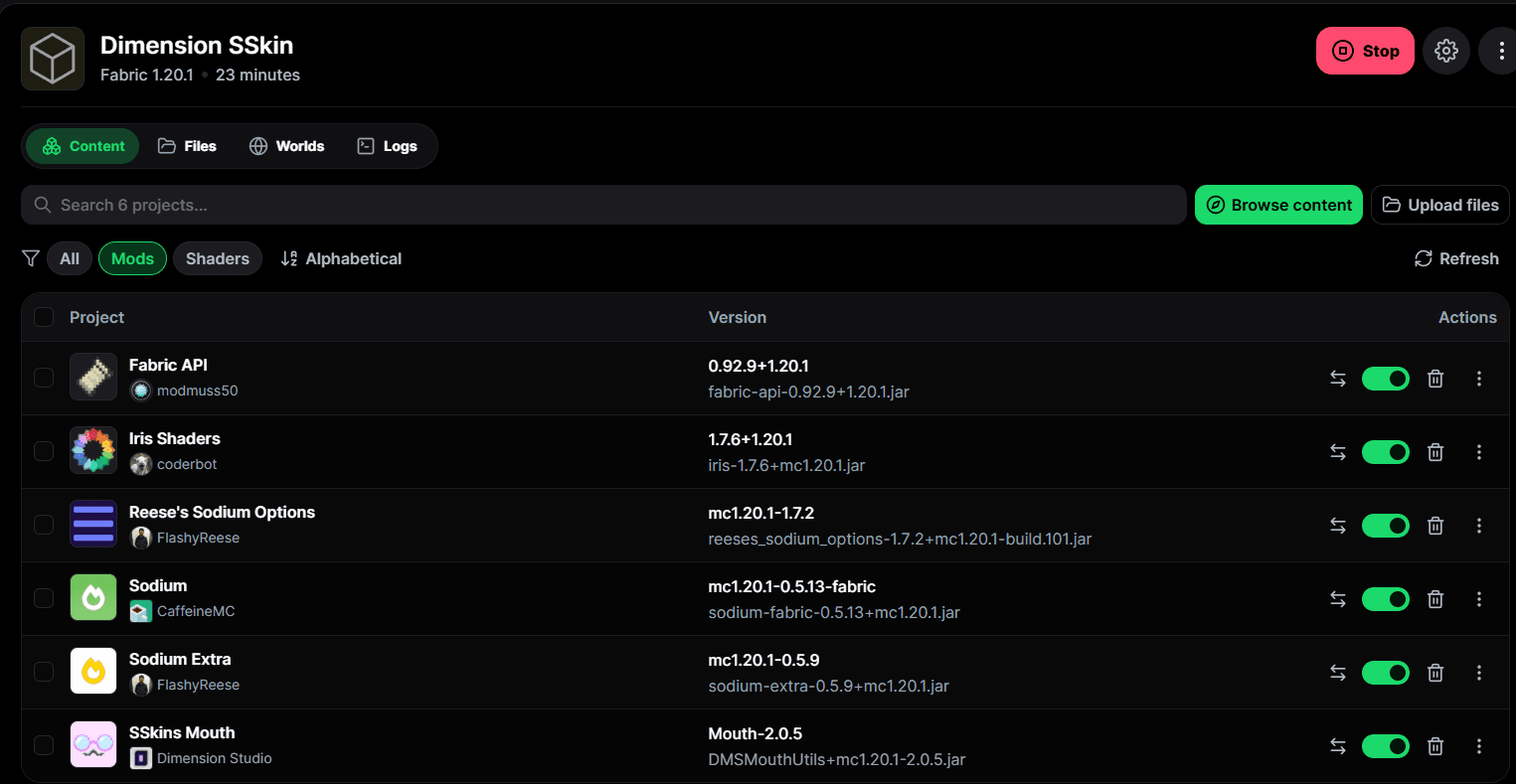
Install Dimension Mouth
Download and install the mod for your Minecraft version.
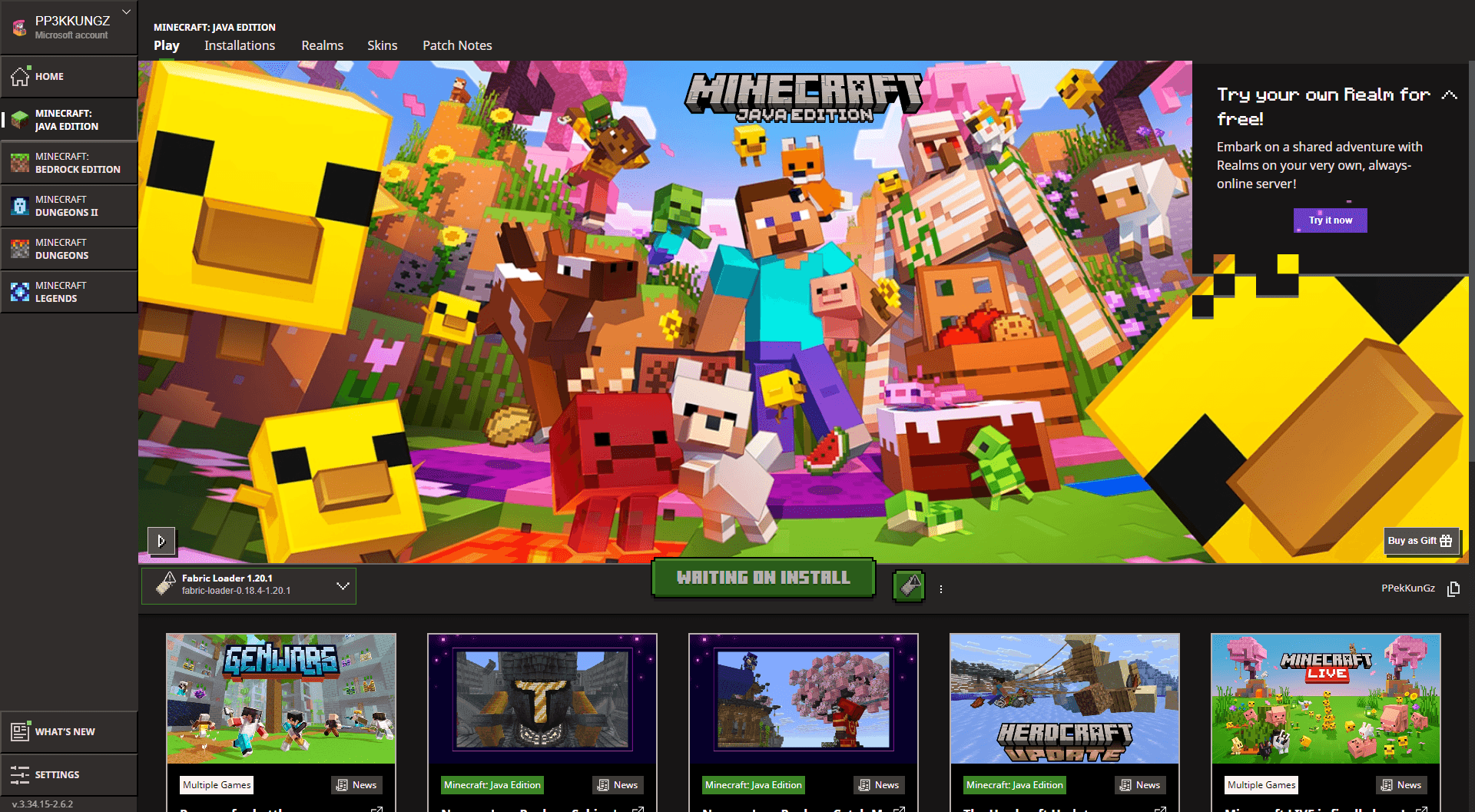
Launch Minecraft
Open the game and allow the mod to synchronize your account.
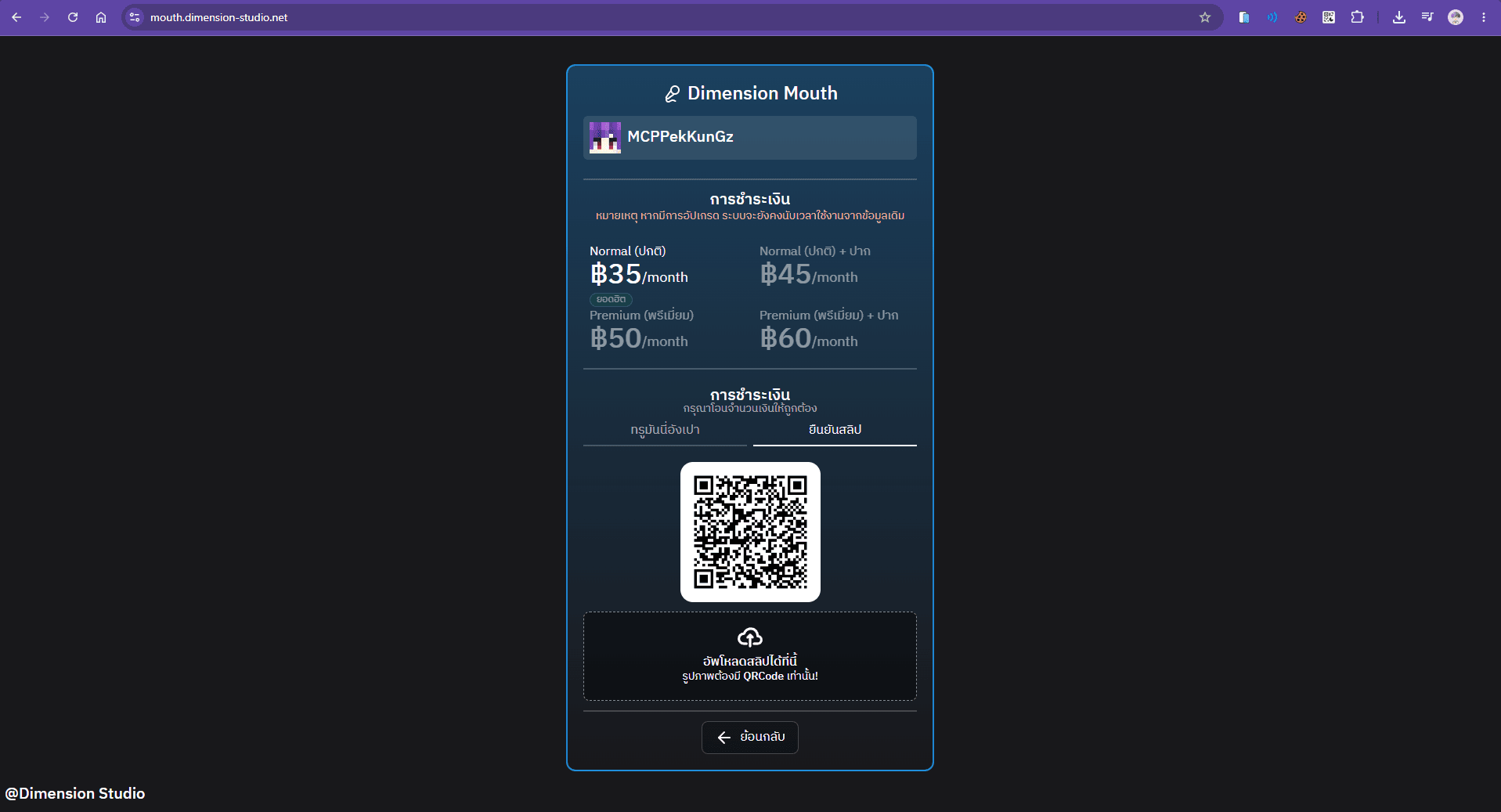
Subscribe to a Plan
Visit https://mouth.dimension-studio.net/, search for your in-game name to select a plan, and restart your game after subscribing.
Upload Your Skin
Open the in-game UI (default: K Key) and upload your custom skin.
Use Cases
Built for real communities.
Roleplay Servers
Create more immersive conversations between characters.
Content Creators
Record videos with expressive animated characters.
Community Teams
Manage skins and animations across large player groups.
Studio Projects
Coordinate custom assets and roleplay infrastructure.
FAQ